Short answer
Open the PDF in Preview, click the Show Markup Toolbar button, then use Highlight, Note, Text, Shapes and Sketch. Choose File → Save and the annotations are stored inside the PDF. For forms and one-off readings, Preview is all you need. For a whole term of lecture PDFs you want to revise and turn into flashcards, a study app like Folio keeps them organised next to your notes.
Annotate a PDF with Preview (built in, free)
Preview ships with macOS, so there is nothing to install. These steps work on recent versions of macOS; button positions can shift slightly between releases.
- Open the PDF in Preview. Double-click the file. If another app opens it, Control-click the file and choose Open With → Preview.
- Show the Markup toolbar. Click the Show Markup Toolbar button (a pen tip in a circle) in the toolbar, or choose View → Show Markup Toolbar. A second row of tools appears.
- Highlight text. Select the text, then click the Highlight button. The small arrow next to it lets you pick a colour, or switch to underline or strikethrough. While the highlighter is switched on, every selection you make is highlighted.
- Add notes and text. The Note tool places a small note you can open and close, and you can Control-click it to change its colour. The Text tool types straight onto the page, handy for filling in a form or labelling a diagram.
- Draw shapes and arrows. The Shapes menu has boxes, circles, lines, arrows and a magnifying loupe. Sketch lets you draw freehand and tidies a rough shape into a clean one (pick your original from the palette if you prefer it). Macs with a Force Touch trackpad also get a Draw tool that responds to pressure.
- Save. Choose File → Save or press ⌘ S. The annotations are stored inside the PDF and stay editable, so they show up in other PDF apps. To lock them in place, choose File → Print and save as PDF instead.
Tip: open the sidebar and switch it to Highlights and Notes to see every annotation in the document as a list, and jump to any of them.
When Preview is enough
- Filling in or signing a form.
- Reading one article and marking the key passages.
- Giving quick feedback on someone else's PDF.
- Any time you just need a marked-up file to send.
Honestly, for those jobs you don't need another app.
Where Preview runs out for studying
Studying asks more of a PDF than reading it once. Over a term, you collect dozens of slide decks and readings, and Preview treats each one as a separate file in a Finder folder. Your highlights stay locked inside each PDF, away from your lecture notes. And there is nothing that turns what you highlighted into questions, or tells you when to look at it again. That is the gap a study app fills.
How Folio handles PDFs for studying
Folio is a Mac study app where PDFs live inside notebooks, right next to your notes. The workflow looks like this:
- Put the PDF in a notebook. Use Import PDF at the bottom of a notebook's sidebar. A PDF can be a page of its own, or an attachment on one of your notes pages.
- Mark it up. Highlight and underline in highlighter colours, stick post-its (with any text size), and draw arrows and circles. Everything stays sharp at any zoom.
- Keep it a normal PDF. Folio writes the annotations into the PDF file itself, so it opens marked up in Preview or any other reader. Nothing is trapped in Folio.
- Turn highlights into flashcards. Generate cards from the whole PDF, a range of pages, or just your highlights and post-its. Folio can also add a summary page with key points and a glossary.
- Review on schedule. Every card gets its own FSRS spaced repetition schedule, and due cards appear on your shelf. The spaced repetition guide explains how that works.
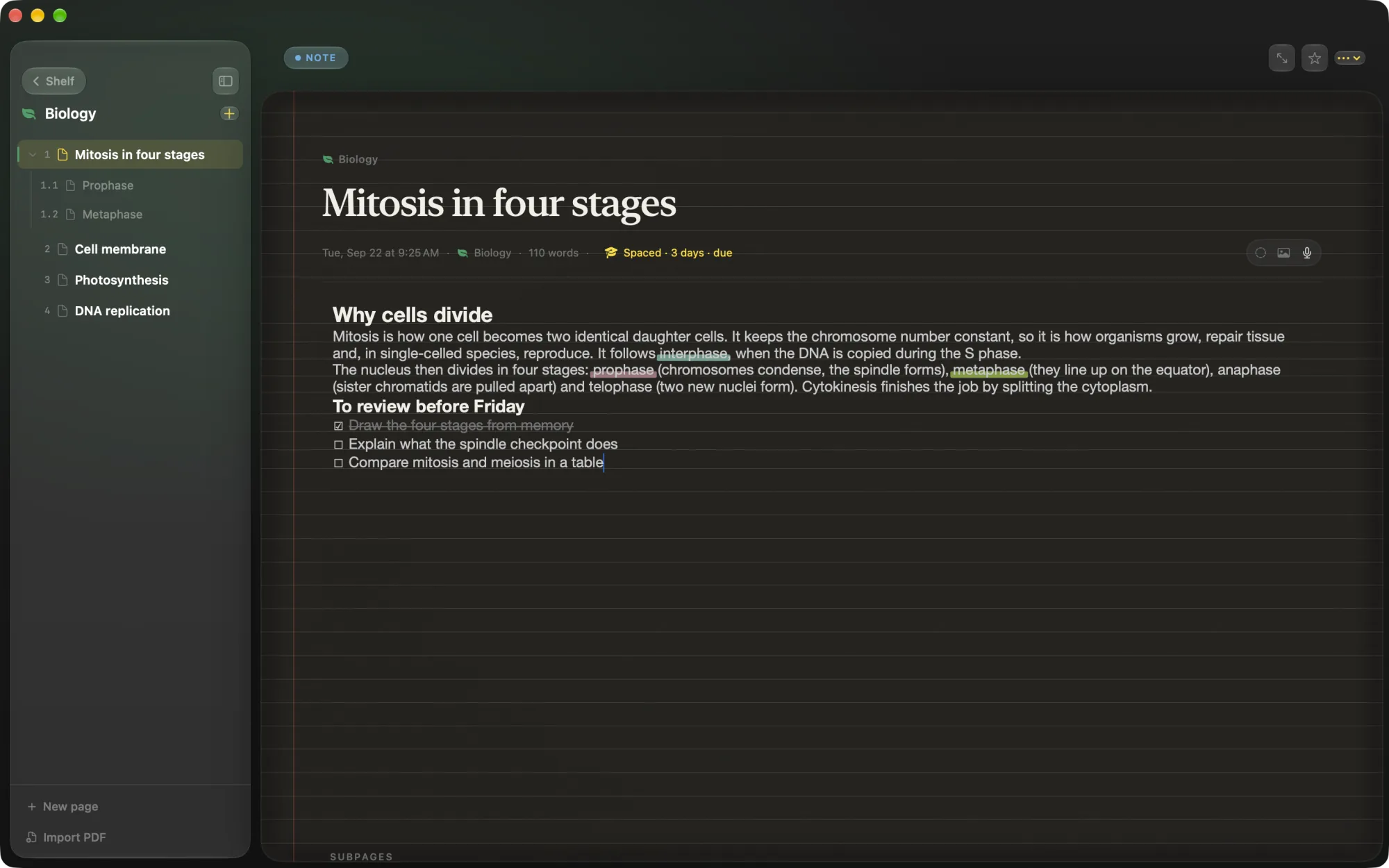
Mark up your next lecture in Folio
Try it free for 24 hours with every feature. Then it's €5 once: no subscription, no account.
macOS 26 Tahoe or later. First launch: right-click Folio in Applications and choose Open.
Preview vs Folio at a glance
| Preview | Folio | |
|---|---|---|
| Price | Free, built into macOS | €5 one-time, after a 24-hour free trial |
| Highlight, notes, drawing | Yes | Yes: highlights, underlines, post-its, arrows, circles, drawing |
| Annotations saved in the PDF | Yes | Yes |
| Forms and signatures | Yes | Not its job: use Preview |
| Organising many PDFs | Finder folders | Notebooks, next to your notes |
| Flashcards from highlights | No | Yes, written by AI on your Mac |
| Spaced review | No | Yes, scheduled with FSRS |
| Requirements | Any Mac | macOS 26 Tahoe or later |
Other good options
If neither fits, a few alternatives are worth knowing. Skim is a free, open-source Mac PDF reader aimed at reading and annotating papers. Full PDF editors such as PDF Expert or Adobe Acrobat are better when you need to edit the text of a PDF itself. And if you annotate by hand with an Apple Pencil, an iPad app such as GoodNotes or Notability will feel more natural than any Mac app.
From highlights to an exam you're ready for
Import a PDF, mark it up, let Folio write the cards. 24-hour free trial, then €5 once.